Why Every Minecraft FPS Player Uses Sodium Extra
In the high-stakes world of competitive Minecraft, every single frame can be the difference between winning and losing. If you have ever lost a fight because your screen hitched for a millisecond, you know how annoying lag can be.
Serious players have shifted away from old, bulky mods toward a much faster and more powerful rendering stack. This new setup maximizes your computer’s performance to deliver low latency and a crystal-clear view of the battlefield.
By using Sodium Extra, you can unlock a professional gaming environment on almost any PC or laptop today. Let’s look at the secret sauce that makes this tool the undisputed king of modern Minecraft performance!
What Makes Sodium Extra the Top Choice for FPS-Focused Players?
The main reason pro players love this tool is that it unlocks hidden settings that the base game keeps locked. It allows you to kill every tiny background animation that usually steals power from your graphics card during big fights.
By focusing purely on the frames you actually see, the mod ensures that your movement feels direct and snappy. It is the best way to ensure your skills aren’t held back by a slow, clunky engine.
Deep Customization: Gaining Full Control Over Game Animations
Standard Minecraft forces a lot of movement in the background, like water flowing or fire flickering, which slows you down. This mod gives you a simple button for each of those effects so you can turn them off.
Reducing Input Lag Through Advanced Video Settings Management
Input lag is the enemy of every gamer, and this mod fixes it by smoothing out the talk between your mouse and screen. You get a much tighter feel to your controls, which is vital for hitting fast bow shots or sword swings.
Comparison Table: Competitive Performance vs. Standard Vanilla Graphics
| Max Frame Potential | Limited by Code | Unlocked / High |
| Input Latency | Noticeable | Minimal / Instant |
| Screen Tearing | Common | Reduced / Smooth |
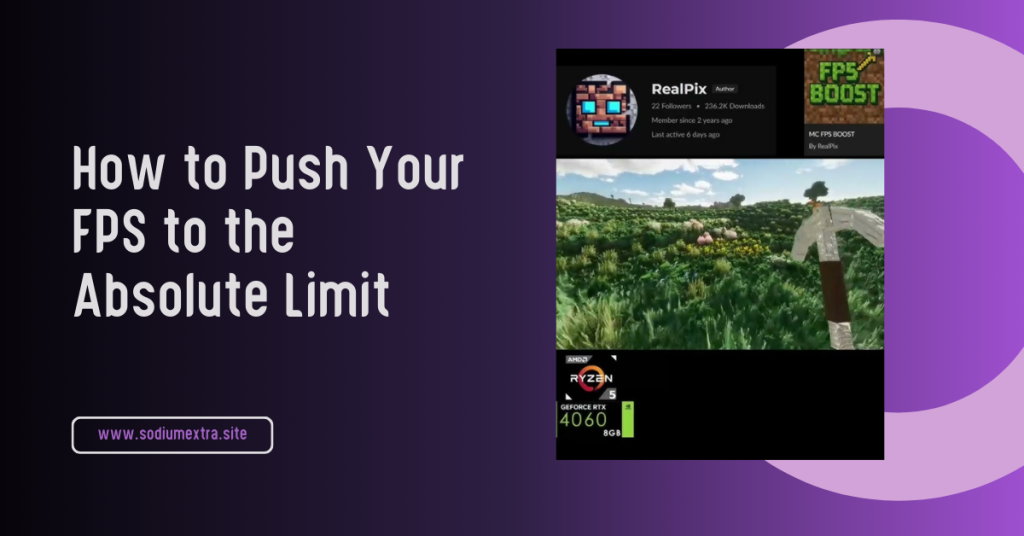
Mastering the Settings: How to Push Your FPS to the Absolute Limit
To reach the highest possible speed, you need to dive into the tabs and start trimming the fat from your graphics. Turning off things like terrain shadows can give you a massive boost without making the world look like a mess.
It is all about finding that “sweet spot” where the game looks clean but runs at hundreds of frames per second. This mod makes the process easy with its organized, friendly menu system for everyone.
Step-by-Step Points for Optimizing Your Graphics for Competitive PvP
- Open the “Animations” tab and disable everything you don’t need for active combat.
- Set your particle distance to “Low” so only the closest effects are ever rendered.
- Use the “Fog” settings to remove thick clouds that block your vision and slow your PC.
- Toggle off “Entity Shadows” to save CPU power during busy multiplayer matches.
- Check your “Frame-Time” graph to ensure your speed remains consistent throughout the trip.
Why Disabling Specific Particles Gives You a Tactical Advantage
Too many particles from potions or explosions can block your view of the enemy during a heated battle. By disabling them, you get a clear line of sight, which is a huge tactical win in competitive servers.
Visual Clarity Meets Speed: The Secret to Stutter-Free Exploration
Exploration causes lag because the game is constantly loading new blocks as you move through the world. This mod helps optimize how new chunks are drawn, preventing annoying freezes during travel.
It creates a much more immersive experience because you aren’t pulled out of the game by stuttering screens. You can fly through the world with confidence that your frame rate will stay high and steady.
Checklist for Achieving a Smooth High-FPS Experience on Low-End PCs
- Install the Fabric Loader to create a fast and lightweight foundation for your mods.
- Ensure the performance add-on is active to unlock advanced animation controls.
- Set your graphics to “Fast” while keeping your render distance at a comfortable level.
- Turn off all “Weather” effects if you are playing on an older laptop or computer.
How Modern Rendering Fixes and Prevents Random Frame Drops in Dense Biomes
Dense biomes like Jungles and Dark Forests are famous for tanking your FPS because of the thousands of leaf blocks and vines. Standard Minecraft tries to render every single block, even if you can’t see it, which wastes your computer’s power and causes annoying micro-stutters.
Modern rendering advancements fix this by putting similar blocks together using geometry batching and letting your graphics card draw them all at once. This keeps your framerate stable and puts less stress on your CPU, even in a thick forest.
Another secret is occlusion culling, which tells the game to stop drawing blocks that are hidden behind other objects, such as trees or hills. By only focusing on what is actually on your screen, Sodium Extra ensures your game doesn’t choke while you are exploring the densest parts of your world.
Comparison Table: Impact of Animation Toggles on System Stability
| Fire Animations | Moderate | Static Fire Texture |
| Water Ripples | Low | Still Water Surfaces |
| All Particles | Significant | Clear Vision |
The Community Verdict: Why Pro Players Trust the Fabric Ecosystem
The Fabric community is known for building mods that are fast, clean, and crash very rarely during gameplay. This reliability is why the world’s top speedrunners have switched to this modern platform.
Having a modular setup means you use only the tools you need, keeping your game files small and fast. It is a smarter way to play that respects your hardware and helps you perform at your best every day.
Understanding the Performance Benefits of Lightweight Modular Modding
Modular modding allows you to update specific parts of your game without waiting for one big file to be fixed. This means you get the latest performance patches faster than players using older legacy mods.
Why Real-Time Rendering Adjustments are Essential for Large Servers
On big servers with many players, the game has to work ten times harder to show everything happening at once. Real-time adjustments allow you to lower your settings on the fly to keep your frames high in crowded areas.
Conclusion
Maximizing your performance in Minecraft is now a necessity for anyone who wants to win. By utilizing a modern rendering stack, every Minecraft FPS Player gains a massive advantage over those stuck on standard, laggy graphics.
These tools provide the stability you need to enjoy a smooth, immersive experience. For a dedicated Minecraft FPS Player, consistent frame times mean your reactions are sharper, and your movements are much more precise during gameplay.
Take the time to build your perfect setup and feel the difference that professional optimization makes. You will enjoy faster gameplay and sharper reactions, leaving the laggy past behind for good!
Frequently Asked Questions (FAQ)
Why do FPS players prefer this over standard mods?
Players need the extra buttons to turn off specific animations that the base mods don’t touch. This deep control is what allows them to reach the absolute highest frame rates possible.
Will this mod make me better at PvP fights?
It won’t aim for you, but it removes the lag that causes you to miss your shots. A smoother game makes it much easier to track enemies and react to their movements.
Is it safe to turn off all animations?
Yes, turning off animations is perfectly safe and is a common trick for pro players. The game will still play the same, it will just look more static and run much faster.
Do these settings work on multiplayer servers?
Absolutely! In fact, that is where you will see the biggest boost in speed. In crowded lobbies, disabling extra particles and shadows is the only way to stay lag-free.
Does this mod affect my render distance?
It doesn’t change the distance, but it makes the blocks within that distance load much faster. This allows you to play at a greater distance than before without lag.
What is the best setting for a weak laptop?
For the best speed, turn off all animations and set your particles to “Minimal.” This takes the weight off your CPU and helps your game stay stable during intense moments.
Can I use this with shaders for a pretty game?
Yes, if you use the Iris mod alongside it, you can run shaders while keeping these settings active. It is the best way to get a beautiful game that still feels smooth.
How do I know if my FPS is actually better?
You can use the built-in F3 menu to watch your frame rate and your graph. You should see a higher average number and a much flatter line on the graph after optimizing.
Latest Posts:
- Fresh Animations for Sodium: How to Install and Use in Minecraft
- Does Sodium Work With Distant Horizons? Compatibility and Installation Guide
- Does Sodium Have Fullbright? Complete Minecraft Lighting Guide
- Does Sodium Have a Zoom Feature? Complete Minecraft Zoom Guide
- Sodium Dependencies: Requirements, Installation, and Compatibility Guide