Sodium Extra Fog Settings: Best Options for Better Visibility
Sodium Extra fog settings help Minecraft players control how fog appears while using the Sodium Extra mod. By adjusting these options, you can improve visibility, reduce unwanted distance haze, and create a cleaner view without sacrificing performance. The right configuration depends on your hardware, shaders, and visual preference.
Exploring a Minecraft world can be frustrating when fog obscures important details. Players who use performance-focused mods often want better visibility without installing heavy visual packs that can reduce FPS.
Sodium Extrdsdsa adds extra video customization options on top of Sodium, allowing more control over visual effects. Fog settings are among the most useful options because they directly affect how far you can see and how the world looks during exploration.
If you are building large structures, exploring caves, recording gameplay, or optimizing a low-end PC, changing fog-related options can make a noticeable difference.
What Are Sodium Extra Fog Settings?
Sodium Extra fog settings are visual configuration options that control Minecraft’s fog behavior, distance, and appearance when using the Sodium Extra Fabric addon. These settings allow players to adjust visibility effects that are normally limited in the default Minecraft video menu.
Sodium focuses mainly on performance improvements, while Sodium Extra adds additional customization options. Fog controls give players more freedom to balance graphics quality and game performance.
Unlike shader-based fog effects, these settings work through Minecraft’s rendering system and usually have a smaller impact on FPS.
Best Sodium Extra Fog Settings for Visibility
The ideal fog configuration depends on what you want from Minecraft. Some players prefer maximum visibility for competitive gameplay, while others want a more natural atmosphere.
A balanced setup usually keeps enough fog to maintain Minecraft’s original style while removing unnecessary visual obstruction.
Recommended Fog Configuration
| Setting | Recommended Option | Best For |
| Fog Type | Default or Reduced | General gameplay |
| Fog Distance | High | Exploration and building |
| Render Distance | Match hardware limit | Better world visibility |
| Cloud/Fog Effects | Adjust based on preference | Visual balance |
| Performance Effects | Keep optimized | Stable FPS |
For most players, increasing visibility settings provides a cleaner experience. However, removing all atmospheric effects can make the world look flatter, especially during weather conditions.
How to Change Sodium Extra Fog Settings
Changing Sodium Extra fog settings only requires a few steps inside Minecraft’s video options.
Open Video Settings
Launch Minecraft with Fabric Loader and make sure Sodium Extra is installed correctly. Open the game menu and select:
Options → Video Settings
The Sodium Extra interface provides additional categories compared with the default Minecraft settings.
Find Extra Visual Options
Look through the available settings until you find options related to fog, rendering, or visual effects.
The exact location may change between Sodium Extra versions because developers update the menu structure with Minecraft releases.
Adjust Fog Distance
Increase the fog distance option if you want clearer views across large areas.
A higher value allows terrain and objects to remain visible farther away. This is useful for:
- Large survival worlds
- Mountain exploration
- Map creation
- Recording videos
Test Performance Changes
After changing settings, move through different areas of your world.
Dense forests, villages, oceans, and caves can produce different results. A setting that works well in one area may affect performance differently somewhere else.
Save Your Configuration
Once you find a suitable balance, keep the settings saved and avoid changing multiple rendering options at the same time. This makes troubleshooting easier if performance problems appear later.
Sodium Extra Fog Settings for Low-End PCs
Players with older hardware should focus on maintaining stable FPS rather than maximum visibility.
Fog itself is usually not the biggest performance factor, but extreme rendering settings combined with high view distance can increase GPU and memory usage.
A practical low-end setup includes:
- Moderate render distance
- Reduced visual effects
- Optimized particles
- Lower simulation distance
- Stable FPS target
For weaker systems, keeping fog slightly higher can sometimes help hide distant chunk loading and create a smoother experience.
Sodium Extra Fog Settings vs Default Minecraft Fog
Minecraft already includes basic fog behavior, but Sodium Extra gives players more control over visual adjustments.
| Feature | Default Minecraft | Sodium Extra |
| Basic fog effects | Available | Available |
| Extra customization | Limited | More options |
| Performance control | Basic | Better optimization support |
| Advanced video settings | Limited | Expanded menu |
Sodium Extra does not replace Minecraft’s rendering engine. Instead, it adds more control over existing settings while keeping the performance advantages of Sodium.
For players who want a lightweight alternative to shader packs, these extra options provide a useful middle ground.
Best Fog Settings for Different Players
Different Minecraft activities require different visual settings. A builder may prefer clear views, while a survival player may want more atmosphere.
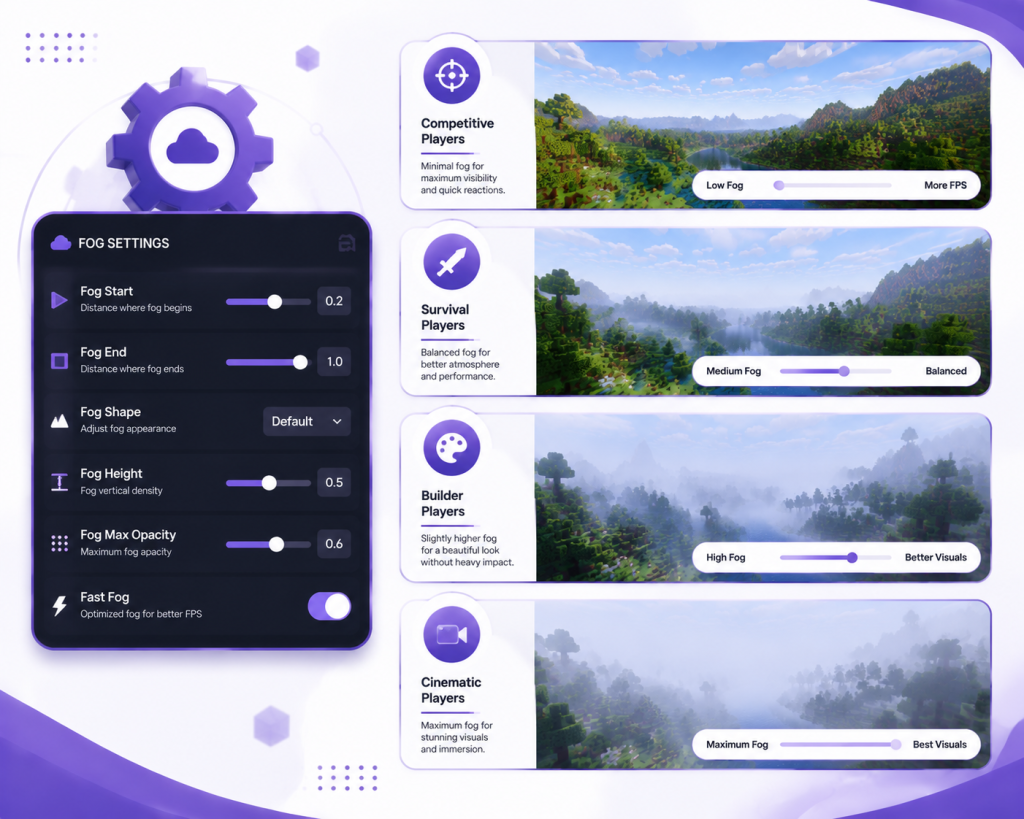
If You Are a Builder
Builders usually benefit from higher visibility because large projects require accurate distance judgment.
Recommended approach:
- Increase fog distance
- Keep render distance high
- Reduce visual distractions
- Use consistent lighting settings
Clear visibility helps when working on large farms, towers, and landscape designs.
If You Are a Survival Player
Survival players need a balance between immersion and visibility.
A completely removed fog effect may reduce the natural feeling of Minecraft environments. A moderate setting often provides the best experience.
If You Are a Content Creator
Creators recording gameplay usually need stable visuals.
A good recording setup focuses on:
- Consistent visibility
- Stable FPS
- Reduced sudden visual changes
- Reliable rendering performance
Common Sodium Extra Fog Problems and Fixes
Fog settings normally work without problems, but mod conflicts and incorrect configurations can cause unexpected results.
| Problem | Cause | Fix |
| Fog settings missing | Wrong Sodium Extra version | Install the compatible version |
| No visual change | Another mod overrides settings | Check conflicting mods |
| Game crashes after changes | Incorrect Fabric setup | Update dependencies |
| Low FPS after increasing distance | Hardware limitation | Reduce render settings |
| Fog looks unusual | Shader conflict | Disable conflicting effects |
Always check that Sodium, Sodium Extra, and Fabric versions match your Minecraft version.
Is Removing Fog Better for Performance?
Removing or reducing fog does not always create a major FPS improvement. Minecraft performance depends more on chunk rendering, entity count, simulation distance, and graphics settings.
According to publicly available Minecraft performance benchmarks, rendering more distant terrain usually creates a larger workload than basic fog adjustments.
Fog settings are mainly useful for visibility and appearance. If your goal is better FPS, focus on the settings that control world rendering load.
Useful optimization areas include:
- Render distance
- Entity distance
- Particle effects
- Animation settings
- Simulation distance
Sodium Extra Fog Settings Best Practices
Good configuration is about balance rather than pushing every option to the maximum.
Follow these practices:
- Change one setting at a time
- Test settings in different environments
- Keep backups of configuration files
- Update mods after major Minecraft releases
Avoid copying random configurations because hardware differences can produce different results.
Frequently Asked Questions About Sodium Extra Fog Settings
Sodium Extra Fog Settings: How to Adjust Visibility and FPS
Sodium Extra adds additional video customization options compared with standard Sodium. Available fog-related controls depend on the installed version and Minecraft release. Players should check their video settings menu after installation because options can change between updates.
What are the best Sodium Extra fog settings for FPS?
The best FPS-focused setup usually avoids extremely high render distance and keeps visual effects balanced. Fog adjustments alone rarely create major performance improvements. Lowering rendering workload, particles, and simulation distance usually provides better results on weaker systems.
Can Sodium Extra remove Minecraft fog completely?
Some Sodium Extra versions provide options that reduce or adjust fog behavior, but available controls depend on the specific release. Full fog removal may require additional modifications or visual settings. Players should check compatibility before adding extra rendering mods.
Do Sodium Extra fog settings work with shaders?
Sodium Extra fog options may interact differently with shader packs because shaders often control their own atmospheric effects. If you notice visual conflicts, test the game without shaders first to identify which system controls the fog appearance.
Conclusion: Getting the Right Sodium Extra Fog Setup
Sodium Extra fog settings give Minecraft players more control over visibility without requiring heavy visual modifications. The best configuration depends on your hardware, gameplay style, and whether you prefer performance or atmosphere.
Start with these steps:
Step 1: Open Sodium Extra video settings and locate available fog options.
Step 2: Gradually adjust visibility and test your normal gameplay areas.
Step 3: Keep the settings that provide a good balance between clear views and stable performance.
One important caveat is that fog changes are not a replacement for full performance optimization. If your FPS is low, other rendering settings will usually have a bigger impact.
Latest post: