Sodium Extra Particles Settings: Reduce Minecraft Lag Easily
Quick Answer:
Sodium Extra particles settings help Minecraft players control visual effects that can reduce performance, especially on large worlds, servers, and lower-end computers. By lowering unnecessary particles, adjusting quality options, and balancing visual effects, you can achieve smoother gameplay while keeping important effects visible.
Minecraft can feel smooth in one area and suddenly become laggy in another. A crowded farm, a busy server hub, or a fight with multiple effects can create sudden FPS drops because the game has to render many small visual elements at once.
For players using performance mods, adjusting particle settings is one of the easiest ways to improve consistency. Sodium Extra adds more control over Minecraft’s video options, allowing you to manage visual details without replacing the core rendering system.
The right particle configuration does not mean turning everything off. A balanced setup keeps important effects visible while removing unnecessary rendering work.
What Are Sodium Extra Particles Settings?
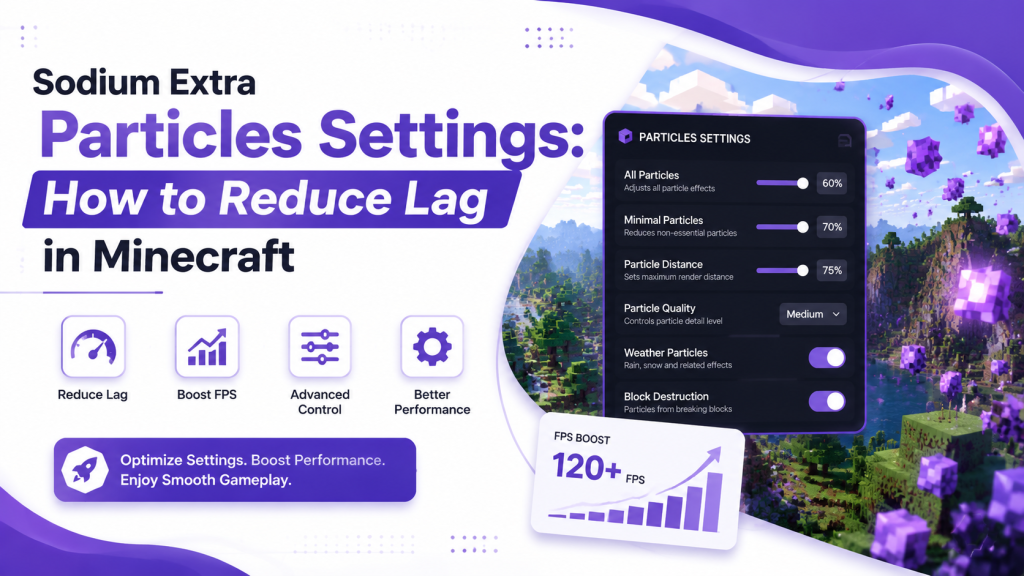
Sodium Extra particle settings are additional Minecraft video options provided by the Sodium Extra mod that allow players to control how particle effects are displayed. These settings affect visual elements such as smoke, explosions, weather effects, potion particles, and environmental effects.
Minecraft particles are small animated graphics that appear during various gameplay events. While each particle is lightweight, thousands of particles appearing together can increase GPU workload and lower FPS.
Sodium Extra gives players more control compared with the default Minecraft settings. This makes it easier to optimize performance while keeping the game visually comfortable.
Why Particles Cause Minecraft Performance Issues
Particles are usually not a problem during normal gameplay. The performance impact becomes apparent when many effects are active simultaneously.
For example, a single torch flame has a very small impact. However, hundreds of item particles, redstone effects, potion effects, or mob interactions can create noticeable frame drops.
Common situations where particles affect performance include:
- Large automatic farms
- PvP battles with potion effects
- Villager trading areas
- Explosions from TNT or creepers
- Multiplayer servers with many players
The impact depends on your hardware, Minecraft version, render distance, and other installed mods.
Before changing particle settings, it helps to understand which effects create the biggest workload.
Best Sodium Extra Particle Settings for Better FPS
A good particle configuration focuses on reducing unnecessary effects without making Minecraft look empty.
The recommended settings depend on your computer specifications, but most players can start with a balanced approach.
| Setting | Recommended Option | Best For |
| Particle Amount | Decreased | Better FPS |
| Weather Particles | Reduced or Off | Lower-end PCs |
| Environmental Effects | Balanced | Normal gameplay |
| Explosion Effects | Reduced | Servers and combat |
| Visual Details | Medium | Better performance |
For competitive players and weaker systems, reducing particles can provide a more stable experience.
High-end computers can keep more effects enabled while still maintaining smooth gameplay.
How to Change Sodium Extra Particle Settings
Changing particle options is simple, but testing each adjustment helps you find the best configuration.
Open Minecraft Video Settings
Start Minecraft using Fabric Loader with Sodium Extra installed.
Open:
Options → Video Settings
The Sodium Extra menu provides additional settings beyond the standard Minecraft options.
Locate Particle Controls
Find the particle-related options available in your version.
Different Sodium Extra releases may organize these settings differently, especially after Minecraft updates.
Reduce Particle Amount
Lowering particle quantity is usually the first step for performance improvement.
This reduces the number of visual effects displayed while keeping gameplay information available.
For example, you may still see important effects but with fewer extra particles around them.
Adjust Weather and Environmental Effects
Rain, snow, and environmental effects can create additional rendering work.
If your FPS drops during storms, reducing weather-related particles can help maintain smoother gameplay.
Test Your Normal Gameplay Areas
After changing settings, test locations where you usually experience lag.
Good testing areas include:
- Your main base
- Mob farms
- Villager halls
- Multiplayer areas
A setting that works well in a normal world may behave differently in crowded areas.
Sodium Extra Particle Settings for Low-End PCs
Low-end systems benefit the most from careful particle management.
The goal is not only higher FPS but also fewer sudden performance drops.
A practical setup includes:
- Reduced particle count
- Lower render distance
- Limited animations
- Optimized entity settings
- Moderate simulation distance
Keeping some particles enabled is usually better because important gameplay effects remain visible.
For example, completely disabling particles may remove useful information from potion effects or environmental changes.
You can also check our guide about for additional optimization methods.
Sodium Extra Particles vs Minecraft Default Settings
Minecraft already provides basic particle controls, but Sodium Extra offers more customization options.
| Feature | Minecraft Default | Sodium Extra |
| Particle control | Basic | Expanded options |
| Performance tuning | Limited | More flexibility |
| Visual customization | Standard | Additional controls |
| Mod compatibility | Vanilla focused | Fabric ecosystem |
Sodium Extra does not add new particle effects. Instead, it improves control over how existing Minecraft effects are rendered.
This makes it useful for players who want performance improvements without changing Minecraft’s original style.
Best Particle Settings for Different Players
Every Minecraft player has different priorities. A builder, competitive player, and content creator may need different configurations.
If You Are a Survival Player
Survival players usually need a balanced setup.
Keep important effects visible while reducing unnecessary visual noise.
Recommended approach:
- Medium particle level
- Reduced weather effects
- Normal gameplay visibility
This keeps exploration enjoyable while improving stability.
If You Are a PvP Player
PvP players often benefit from lower particles because fights can create many effects quickly.
Recommended changes:
- Reduce explosion particles
- Lower potion effects
- Disable unnecessary visual distractions
Clear visibility can make combat easier to follow.
If You Are a Content Creator
Creators need stable performance and consistent visuals.
Completely removing particles may make recordings look less natural.
A balanced setup provides smoother gameplay while keeping Minecraft’s atmosphere.
Does Reducing Particles Improve FPS?
Reducing particles can improve FPS, but the improvement depends on your situation.
According to publicly available Minecraft performance testing, rendering workload is influenced by many factors, including chunk updates, entities, lighting calculations, and visual effects.
Particles become a major factor when many effects appear at once.
If your game runs slowly everywhere, particle settings alone may not solve the issue. However, if lag appears during explosions, farms, or crowded areas, reducing particles can help.
Common Sodium Extra Particle Problems and Fixes
Particle settings usually work correctly, but compatibility issues can happen with modded Minecraft setups.
| Problem | Cause | Fix |
| Particle options missing | Wrong mod version | Install compatible Sodium Extra version |
| Settings reset after restart | Configuration issue | Check config files |
| No FPS improvement | Different bottleneck | Adjust rendering settings |
| Visual glitches | Mod conflict | Disable conflicting mods |
| Game crashes | Incorrect dependencies | Update Fabric and mods |
Always keep Sodium, Sodium Extra, Fabric Loader, and Minecraft versions compatible.
You can also read our for proper setup information.
Sodium Extra Particles Best Practices
Good optimization requires testing instead of copying random settings.
Follow these practices:
- Change one option at a time
- Test before and after changes
- Keep important visual effects enabled
- Update mods regularly
- Backup configuration files
Every computer handles Minecraft differently. A setting that works perfectly on one system may not produce the same results on another.
Frequently Asked Questions About Sodium Extra Particles Settings
Does Sodium Extra reduce Minecraft particles automatically?
Sodium Extra does not automatically remove particles when installed. It provides additional settings that allow players to manually control visual effects. You need to adjust these options based on your hardware and gameplay style to find the right balance between performance and appearance.
What particle settings are best for low-end PCs?
Low-end PCs usually benefit from reduced particle levels, lower weather effects, and fewer visual animations. These changes reduce rendering workload and can make FPS more stable during demanding situations such as large farms, multiplayer battles, and areas with many moving objects.
Can Sodium Extra particles settings increase FPS?
Yes, reducing particles can improve FPS when visual effects are causing performance drops. However, the improvement depends on your system and other settings. If your main issue is chunk loading, entities, or simulation distance, other optimizations may provide a larger performance increase.
Should I disable all particles in Minecraft?
Disabling all particles is not always the best choice. Some particles provide useful gameplay information, such as potion effects or environmental changes. A balanced reduction usually gives better results because it improves performance while keeping important visual feedback.
Do Sodium Extra particle settings work on multiplayer servers?
Yes, Sodium Extra particle settings work on multiplayer servers because they affect your local rendering only. Server performance is not changed, but your own computer may display the game more smoothly when fewer particles need to be rendered.
Conclusion: Optimize Sodium Extra Particles for Smooth Gameplay
Sodium Extra particles settings are a simple way to reduce unnecessary visual workload in Minecraft. They are especially useful for players who experience FPS drops during busy scenes, large builds, or multiplayer gameplay.
Start with these steps:
Step 1: Open Sodium Extra video settings and locate particle controls.
Step 2: Reduce effects gradually and test areas where you normally experience lag.
Step 3: Keep a balance between performance and visual quality.
One honest limitation is that particle adjustments cannot fix every Minecraft performance problem. If your system struggles due to hardware limitations or heavy world loading, you may need additional optimizations.
Latest post