How to Install Sodium Extra With Fabric (Step‑by‑Step)
2026 has made it easier than ever to improve your Minecraft performance, particularly with the recent 1.21.11 upgrades and the growth of the Fabric modding environment. The best way to stop stuttering or low frame rates is to understand how to set up the right optimization tools.
This add-on is the perfect partner for your rendering engine because it offers a level of graphical flexibility previously available only with older upgrades like OptiFine. By installing Sodium Extra, you can toggle specific animations, adjust cloud height, and fine-tune fog settings, all of which greatly reduce GPU load. You can ensure your game functions properly on practically any hardware, from a low-cost laptop to a high-end setup, by following a clear, organized installation process.
This tutorial walks you through each stage of the setup procedure, ensuring your files are positioned precisely for optimal results. The secret to creating a reliable, fast-paced environment is understanding how to install Sodium Extra correctly, regardless of your modding experience.
What Do You Need to Prepare Before Installing Sodium Extra?
Before you start adding new files, you must ensure your game is ready to handle third-party additions. You need a clean installation of Minecraft Java Edition and a basic understanding of where your game data is stored.
It is also vital to gather the required “dependency” mods that act as the bridge between the game and your new tools. Without these small helper files, your game might fail to start or show an error message during the loading screen.
Checking Your Minecraft Java Edition Version Compatibility
Always match your mod files to the exact version of Minecraft you are currently playing to avoid annoying crashes. You can find your version number in the bottom left corner of the launcher before you hit play.
Identifying the Necessary Dependency Mods for a Smooth Launch
Most performance tools require the Fabric API to function correctly within the game’s internal engine. Make sure you download the API version that matches your game release date to ensure every feature works perfectly.
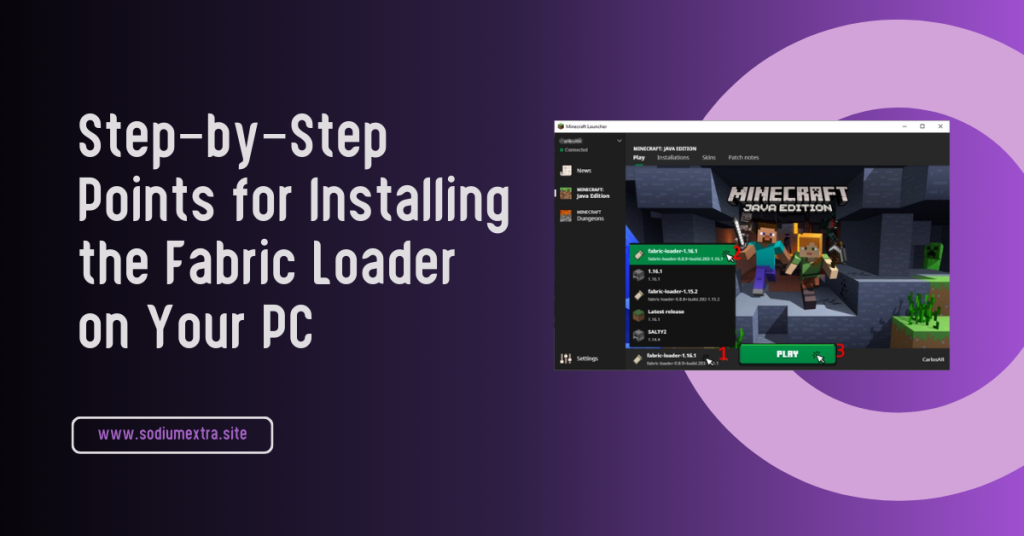
Step-by-Step Points for Installing the Fabric Loader on Your PC
- Visit the official Fabric website and download the “Universal Jar” or “Windows EXE” installer for your system.
- Run the installer file and select the Minecraft version you want to use for your new high-performance profile.
- Ensure the “Create Profile” box is checked so the launcher recognizes the new version automatically after setup.
- Click the “Install” button and wait for the success message to appear before closing the application.
- Open your Minecraft Launcher and verify that the “Fabric Loader” profile is now visible in your version list.
The Core Setup: Downloading and Placing Your Optimization Files
Once your loader is ready, you need to download the actual performance files from a trusted source, such as Modrinth. Look for the most recent “Release” build rather than a “Beta” to ensure your game stays stable and bug-free.
After downloading the “.jar” files, you must move them into the specific folder where Minecraft looks for new code. This simple “drag and drop” process is the most critical part of the entire installation journey.
Finding the Official Verified Download Links for Your Mod Version
Always use official platforms to avoid downloading fake files that could contain malware or outdated code. Verified links ensure you get the genuine Sodium Extra experience with all the latest security patches.
Navigating to the Hidden Minecraft Mods Folder on Windows and Mac
On Windows, find your folder by typing “%appdata%” into your search bar and clicking on the “.minecraft” directory. For Mac users, the path is in “Application Support” within your hidden Library files.
Comparison Table: Manual Installation vs. Using a Mod Manager
| Manual (Drag & Drop) | Simple | Full Manual | Moderate |
| Mod Manager (Prism/Curse) | Very Easy | Automatic | Very Low |
Configuring Your Experience: First-Time Launch and Video Settings
After you have placed your files, launch the game and head straight to the “Video Settings” menu. You will notice a completely redesigned interface that offers many more buttons than the vanilla game.
This is where you can truly fine-tune your performance by disabling heavy animations or adjusting how chunks are loaded. Taking a few minutes to tweak these settings can yield a massive boost in your frame rate.
Step-by-Step Points for Enabling Advanced Performance Toggles
- Navigate to the “Animations” tab to disable fire and water effects for a cleaner feel.
- Use the “Particles” slider to set the detail level to “Minimal” for better CPU speed.
- Enable “Fast Leaves” in the quality settings to prevent lag while exploring dense jungles.
- Check the “Cloud” settings and turn them off if you are playing on a low-end laptop.
- Click “Apply” and use the F3 menu in-game to see your new, higher FPS count.
Verifying the Installation Success Through the In-Game Menu
If the installation worked, your video settings screen will look much cleaner and have extra tabs at the top. You can also see the mod’s name listed in the bottom corner of the main menu screen.
Comparison Table: Recommended RAM Allocation for Optimization Mods
| 8 GB | 2 GB to 4 GB | Balanced Speed |
| 16 GB+ | 4 GB to 6 GB | High-End Graphics |
Maintenance and Updates: Keeping Your Performance Stack Current
Minecraft updates often, and your mods must stay up to date to keep up with the latest changes to the game code. Checking for updates once a month is a great habit that keeps your game running at its absolute best.
If you encounter a crash, the first step is always to check if one of your mods is outdated or missing a file. Most errors can be fixed by simply replacing an old file with the newest version available online.
Troubleshooting Common Crashes and “Incompatible Mod” Errors
An “Incompatible Mod” error usually means you have accidentally mixed versions, like using a 1.20 mod on a 1.21 game. Simply remove the wrong file and replace it with the correct version to fix the issue.
How to Safely Update Your Mods Without Losing Your World Data
Updating your performance mods is perfectly safe and will never delete your saved buildings or items. Always keep a backup of your “.minecraft” folder just in case you want to revert to an older version.
Conclusion
Mastering the installation of modern performance tools is a game-changing skill that unlocks the full potential of your Minecraft experience. By following this path, you have transformed a laggy game into a smooth and professional-grade gaming environment.
The combination of a lightweight loader and powerful rendering add-ons ensures that you can focus on your creativity rather than hardware limits. A well-optimized game responds faster to your commands, giving you a tactical edge.
As the game continues to evolve, staying informed about the best optimization practices will keep you ahead of the curve. You now have the knowledge required to maintain a high-FPS setup. Go out there and enjoy a perfectly lag-free adventure!
Frequently Asked Questions (FAQ)
Is Fabric better than OptiFine for FPS?
In 2026, Fabric is generally considered much faster and more stable on modern versions. It uses newer rendering techniques that provide a significant boost over older legacy mods.
Do I need a special launcher to use these mods?
You can use the standard Minecraft Launcher, but many players prefer “Prism” for easier management. However, the standard launcher works perfectly fine if you follow the manual steps.
Why isn’t my game starting after installation?
The most common reason is a missing dependency, such as the Fabric API. Double-check your mods folder to ensure every required file is present and matches your game version exactly.
Can I use these mods on a multiplayer server?
Yes! These are “client-side” mods, meaning they only change things on your computer. You can safely use them on any server, including Hypixel, without any risk.
Does this mod include a Zoom feature?
By default, it does not, but you can easily add a “Zoom” mod to your Fabric folder. This modular approach allows you to pick exactly the features you want.
How do I know if the mod is actually working?
Open your “Video Settings” menu; if you see a new layout with extra tabs, the installation was successful. You can also press F3 to see your increased FPS count in real-time.
Will this work on a Mac or Linux computer?
Absolutely! Fabric and its optimization mods are built in Java, so they work perfectly across Windows, macOS, and Linux without any special changes.
What should I do if my screen starts flickering?
Flickering is usually caused by an outdated graphics driver or a mod conflict. Make sure your GPU drivers are up to date, and you aren’t using two rendering engines.
Latest Posts:
- How to Use Fresh Animations on Sodium in Minecraft
- Fresh Animations for Sodium: How to Install and Use in Minecraft
- Does Sodium Work With Distant Horizons? Compatibility and Installation Guide
- Does Sodium Have Fullbright? Complete Minecraft Lighting Guide
- Does Sodium Have a Zoom Feature? Complete Minecraft Zoom Guide